一、前置条件
分两种情况
- 操作系统版本较高,分别是win2016及Win10以上,这种可以使用域自带的LAPS即可
- 操作系统版本较低,需要安装提供的LAPS安装包
二、初始化配置
使用下列命令查找到主DC,在主DC上进行操作
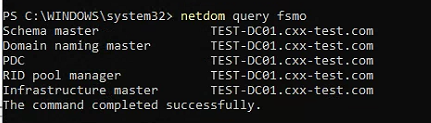
2.1、操作系统版本较高的情况下
 1
 2
 3
 4
 5
 6
 7
 8
 9
10
| Import-Module LAPS
#如果没有安装
Install-Module -Name LAPS -Force
#执行扩展
Update-LapsADSchema
# 给 Domain Admins 组赋予读取 LAPS 密码的权限
Set-LapsADReadPasswordPermission -Identity "OU=Workstations,DC=contoso,DC=com" -AllowedPrincipals "Domain Admins"
# 给计算机对象自身权限,让它能写入自己的密码
Set-LapsADComputerSelfPermission -Identity "OU=Workstations,DC=contoso,DC=com"
|
这个命令将会将 LAPS 所需的所有架构扩展添加到 Active Directory 中,包括:
ms-Mcs-AdmPwd:存储计算机的本地管理员密码。ms-Mcs-AdmPwdExpirationTime:存储密码的过时间。ms-LAPS-PasswordExpirationTime:用于计算密期时间的属性。
请确保在运行此命令之前,你已经获得了足够的权限(通常需要 Enterprise Admins 或 Schema Admins 权限)
2.3、操作系统版本较低的情况
在这种情况下需要将LAPS的扩展添加到系统中,首先要确认主DC
点击下载配置文件:AdmPwd.adml 模板文件
点击下载配置文件:AdmPwd.admx 模板文件
AdmPwd.admx文件下载到DC中的C:\Windows\PolicyDefinitions
AdmPwd.adml文件下载到DC的C:\Windows\PolicyDefinitions\EN-US\
将文件放置完成后,执行命令升级老版本的LAPS
1
2
3
4
5
6
7
| Install-Module -Name AdmPwd.PS -Force
Import-Module AdmPwd.PS
Update-AdmPwdADSchema
#使用以下命令为管理人员配置读取权限
Set-AdmPwdReadPasswordPermission -OrgUnit "OU=YourOU,DC=domain,DC=com" -Principal "YourAdminGroup"
#为计算机账户设置修改权限(使计算机能够更改自己的密码)
Set-AdmPwdComputerSelfPermission -OrgUnit "OU=YourOU,DC=domain,DC=com"
|
2.3、验证
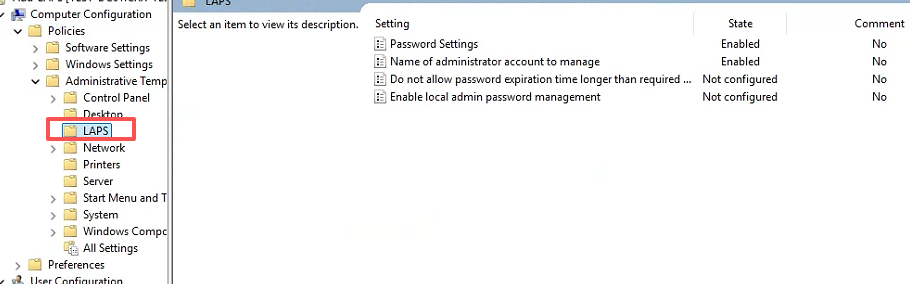
两个版本的组策略所在的位置不同,请注意
新版本的位置在:Computer Configuration > Policies > Administrative Templates > Systems > LAPS
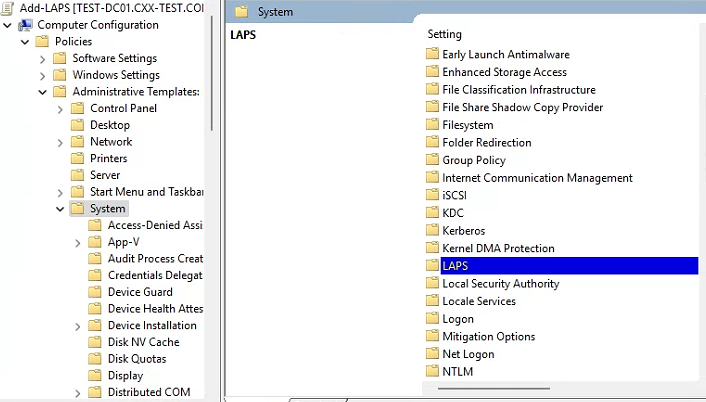 老版本的位置在:Computer Configuration > Policies > Administrative Templates > LAPS
三、组策略配置
3.1、新版本配置
- Configure password backup directory
- 设置为 Backup the password to Active Directory
- 🚨 如果这个没开,LAPS 就不会工作。
- Password settings
- 配置密码复杂度、长度(建议 15+ 位)、有效期(建议 30 天左右)
- Configure password encryption(推荐启用)
- 如果域功能级别 ≥ 2016,可以用加密存储密码,更安全。
- Configure administrator account name
- 默认管理内置
Administrator 帐号。 - 如果你改过本地管理员名字,这里要填新的名字。
- (可选)Enable password backup for DSRM accounts(如果是 DC)
- Do not allow password expiration time longer than required by policy
- Configure administrator account name
- 如果你改过内置管理员账户名称,可以在这里指定。
- 默认会管理内置的
Administrator。
- Configure password encryption
- 如果域功能级别支持(2016+),建议开启 密码加密存储,更安全。
- Enable password backup for DSRM accounts(仅 DC)
- 如果要让 LAPS 管理 DC 的 DSRM 密码,可以启用。
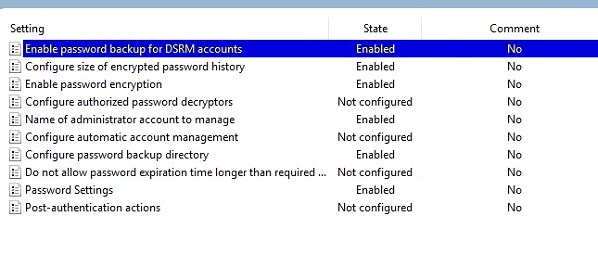
3.2、老版本配置
- Enable local admin password management →
Enabled - Password Settings
- 密码长度:
15 - 密码复杂度:
Enabled - 密码有效期:
30 天
- Name of administrator account to manage
- 留空 = 内置 Administrator
- 如果改过名字就填新名字
- Do not allow password expiration time longer than required by policy →
Enabled
四、老版本安装LAPS
下载LAPS [LAPS下载地址](Download Local Administrator Password Solution (LAPS) from Official Microsoft Download Center)
因2025无法配置推送LAPS安装包,使用批处理文件加powershell脚本结合的方式进行
bat文件如下
 1
 2
 3
 4
 5
 6
 7
 8
 9
10
11
| @echo off
if not exist C:\Tools mkdir C:\Tools
echo Copying script locally...
copy "\\yourdomain\SysVol\yourdomain\Policies\LAPS\InstallLaps.ps1" C:\Tools\InstallLaps.ps1 /Y
echo Running InstallLaps.ps1 locally...
powershell.exe -ExecutionPolicy Bypass -NoProfile -File "C:\Tools\InstallLaps.ps1" >> C:\Tools\InstallLaps_debug.log 2>&1
echo Done! Check C:\Tools\InstallLaps_debug.log
pause
|
powershell脚本如下
 1
 2
 3
 4
 5
 6
 7
 8
 9
10
11
12
13
14
15
16
17
18
19
20
21
22
23
24
25
26
27
28
29
30
31
32
33
34
35
36
37
38
39
40
41
42
43
44
45
46
47
48
49
50
51
52
53
54
55
56
57
58
59
60
61
62
63
64
65
66
67
68
69
70
71
72
73
74
75
76
77
78
| # ==============================
# LAPS Auto Install Script
# Author: ChatGPT
# ==============================
# LAPS installer path (放在 SYSVOL 中,供低版本机器安装)
$LapsMSIPath = "\\cxx-test.com\SYSVOL\cxx-test.com\Policies\LAPS\LAPS.msi"
# 日志路径
$LogFolder = "C:\Tools"
$LogFile = "$LogFolder\LAPS_Install_Log.txt"
# 确保日志目录存在
if (-not (Test-Path $LogFolder)) {
New-Item -Path $LogFolder -ItemType Directory -Force | Out-Null
}
# 写日志函数
function Write-Log {
param([string]$Message)
Add-Content -Path $LogFile -Value "[$(Get-Date -Format 'yyyy-MM-dd HH:mm:ss')] $Message"
}
# 检查是否安装了 LAPS(通过注册表)
function Test-LAPSInstalled {
$RegPaths = @(
"HKLM:\SOFTWARE\Microsoft\Windows\CurrentVersion\Uninstall\*",
"HKLM:\SOFTWARE\WOW6432Node\Microsoft\Windows\CurrentVersion\Uninstall\*"
)
foreach ($path in $RegPaths) {
$apps = Get-ItemProperty $path -ErrorAction SilentlyContinue | Where-Object {
$_.DisplayName -like "Local Administrator Password Solution*"
}
if ($apps) { return $true }
}
return $false
}
# 获取 OS 信息
$OS = Get-WmiObject -Class Win32_OperatingSystem
$Caption = $OS.Caption
$Version = [System.Version]$OS.Version
Write-Log "Detected OS: $Caption ($Version)"
# 判断逻辑
if ($Version.Major -eq 6 -and $Version.Minor -eq 1) {
# Windows 7 SP1 / Server 2008 R2 SP1
if (Test-LAPSInstalled) {
Write-Log "LAPS already installed on $Caption. Skipping."
} else {
if (Test-Path $LapsMSIPath) {
Write-Log "Legacy OS detected ($Caption). Installing LAPS..."
Start-Process msiexec -ArgumentList "/i", $LapsMSIPath, "/quiet", "/norestart" -Wait
Write-Log "LAPS installation completed on $Caption."
} else {
Write-Log "Error: LAPS installer not found at $LapsMSIPath"
}
}
}
elseif ($Version.Major -eq 10 -and $Version.Build -lt 17763) {
# Windows 10 (低于 1809) / Server 2016
if (Test-LAPSInstalled) {
Write-Log "LAPS already installed on $Caption. Skipping."
} else {
if (Test-Path $LapsMSIPath) {
Write-Log "Old OS detected ($Caption). Installing LAPS..."
Start-Process msiexec -ArgumentList "/i", $LapsMSIPath, "/quiet", "/norestart" -Wait
Write-Log "LAPS installation completed on $Caption."
} else {
Write-Log "Error: LAPS installer not found at $LapsMSIPath"
}
}
}
else {
# Windows 11 / Server 2019+
Write-Log "Modern OS detected ($Caption). Built-in LAPS available. No installation needed."
}
|
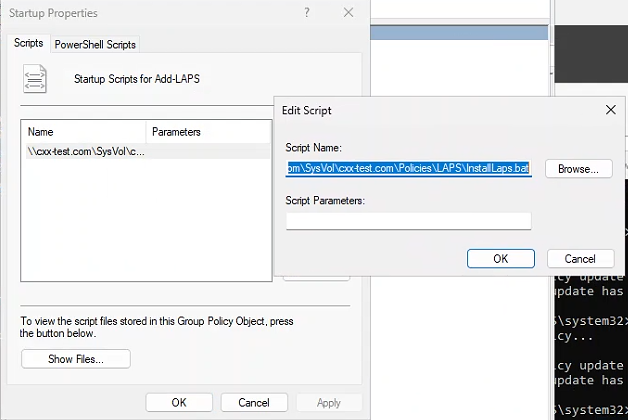
将上述文件放在\yourdomain\sysvol\yourdomain\Policies\LAPS
编辑组策略
- 导航到
Computer Configuration > Policies > Windows Settings > Scripts (Startup/Shutdown)。 - 双击 Startup,然后点击 Add…。
- 在弹出的对话框中,点击 Browse…,选择你要运行的脚本(如果是放在网络共享路径,请确保路径格式类似 `\yourdomain\SysVol\yourdomain\Policies\LAPS\InstallLaps.bat)
!
五、查看结果
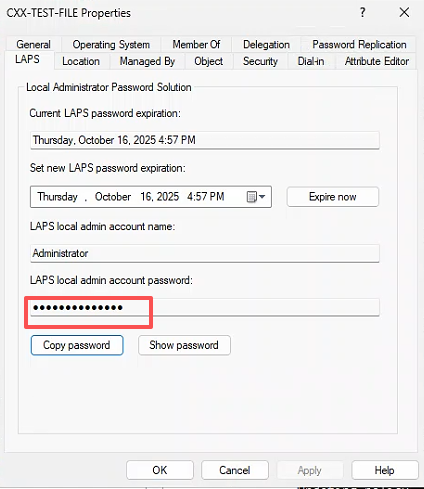
新版本在计算机属性-LAPS上看
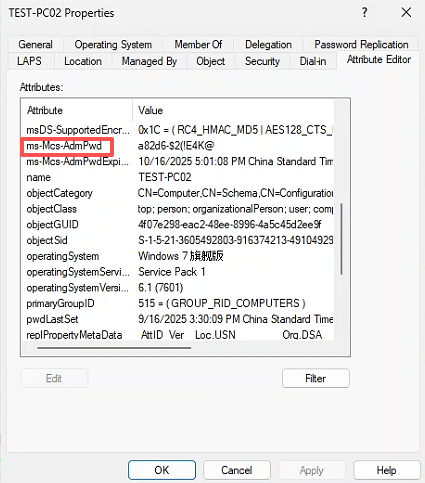
 旧版本的在计算机属性的Attrbute Editor下查看ms-Mcs-AdmPwd属性
六、错误排查
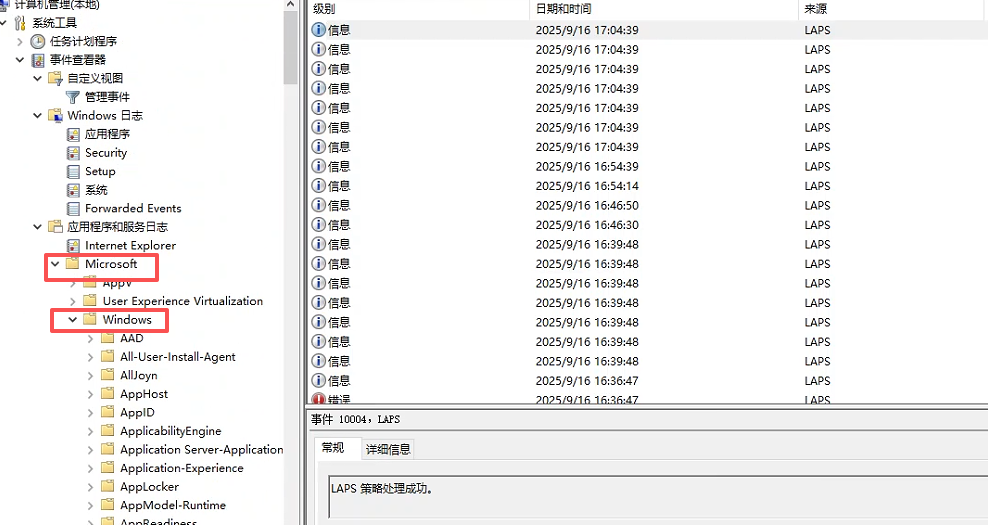
客户端可以先查看组策略及日志,该文件夹下LAPS日志
 服务器端
新版
服务器端
新版
 1
 2
 3
 4
 5
 6
 7
 8
 9
10
| # 检查是否存在新版 LAPS 属性
Get-ADObject -SearchBase (Get-ADRootDSE).SchemaNamingContext `
-LDAPFilter "(lDAPDisplayName=ms-LAPS*)" | Select-Object Name, lDAPDisplayName
# 查看指定 OU 是否启用 Windows LAPS
Get-LapsADPolicy -Identity "OU=Workstations,DC=contoso,DC=com"
# 查看某台机器的 LAPS 密码是否已写入 AD
Get-LapsADPassword -Identity "PC001" -AsPlainText
#批量检查 OU 下的所有计算机
Get-ADComputer -SearchBase "OU=Workstations,DC=contoso,DC=com" -Filter * |
Get-LapsADPassword -AsPlainText
|
旧版
 1
 2
 3
 4
 5
 6
 7
 8
 9
10
11
| # 查询是否有配置旧版 LAPS GPO
Get-GPO -All | Where-Object { $_.DisplayName -match "LAPS" }
# 查看某台机器是否已上传 LAPS 密码(旧版)
Get-ADComputer "PC001" -Property ms-Mcs-AdmPwd, ms-Mcs-AdmPwdExpirationTime |
Select-Object Name, ms-Mcs-AdmPwd, ms-Mcs-AdmPwdExpirationTime
#批量检查 OU 下的所有计算机
Get-ADComputer -SearchBase "OU=Workstations,DC=contoso,DC=com" -Filter * -Property ms-Mcs-AdmPwdExpirationTime |
Select-Object Name, ms-Mcs-AdmPwdExpirationTime
# 检查是否存在旧版 LAPS 属性
Get-ADObject -SearchBase (Get-ADRootDSE).SchemaNamingContext `
-LDAPFilter "(lDAPDisplayName=ms-Mcs-AdmPwd*)" | Select-Object Name, lDAPDisplayName
|